Install the Apirone plugin for OpenCart
Accept Bitcoin, Ethereum, Litecoin, TRON and other cryptocurrencies directly in OpenCart using Apirone.
Install the Apirone extension to accept cryptocurrency payments directly in your OpenCart store. Accept Bitcoin (BTC), Bitcoin Cash (BCH), Litecoin (LTC), Dogecoin (DOGE), as well as stablecoins USDT and USDC on TRON (TRC20), Ethereum (ERC20), BNB Smart Chain (BEP20), and TON.
This guide walks you through the installation and initial configuration process. You'll also find links to the extension source code, the OpenCart Marketplace, and video tutorials covering both setup and how the extension works.
How to install the plugin
Step 1 - Install the plugin
Download the latest version of the Apirone OpenCart extension from the OpenCart Marketplace or GitHub using the links above. Then log in to your OpenCart Admin Area to begin the installation.
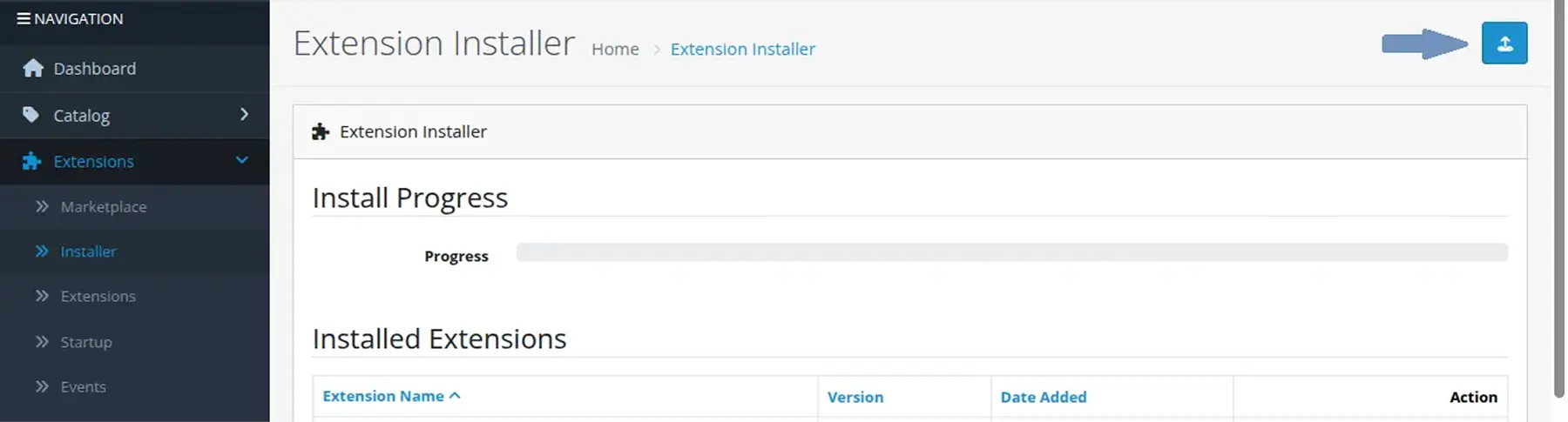
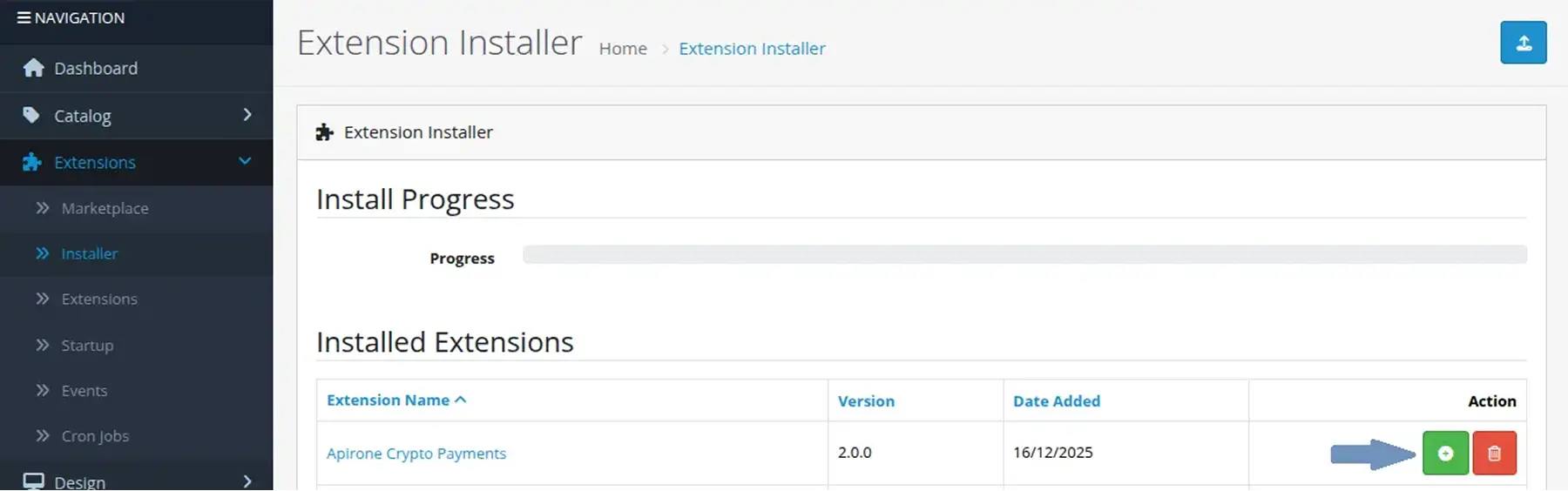
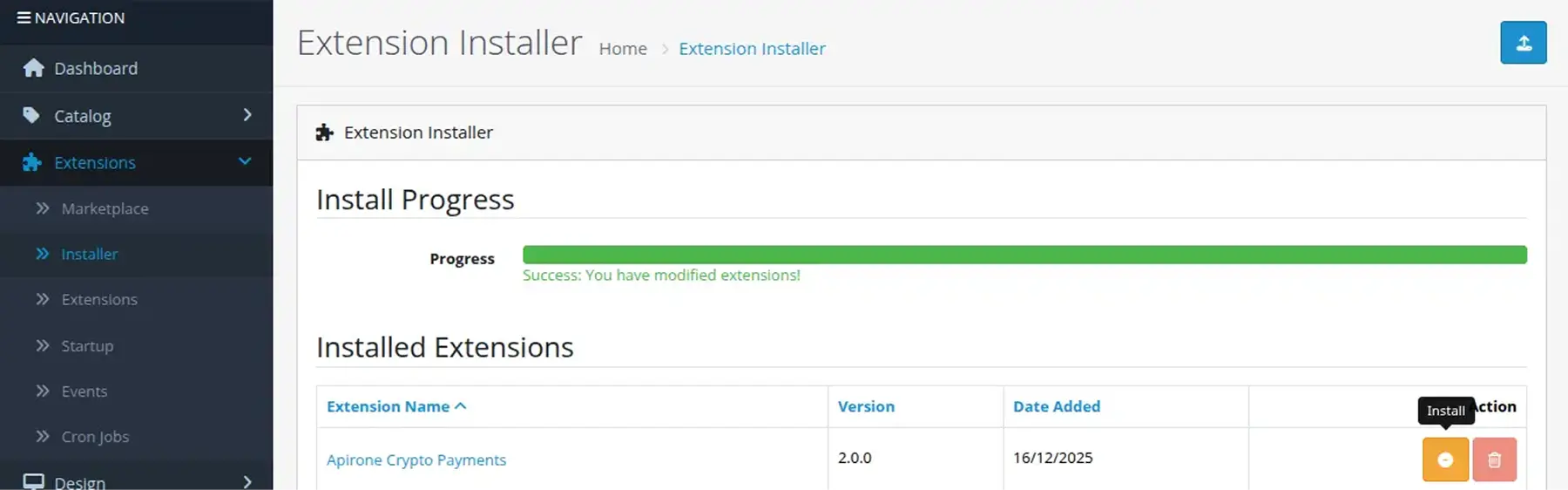
From the menu go to Extensions >> Installer and click the button Upload. After successful upload, the plugin will appear in the list of added plugins. To complete the installation, click the plus button next to the plugin.
Then go to Extensions >> Extensions . Choose the Payments type from the Extensions list.
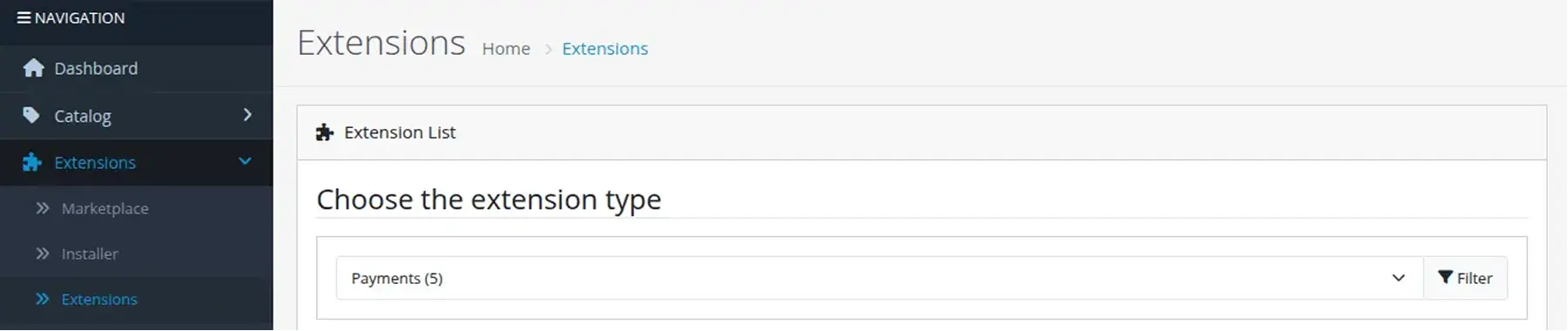
Then add Apirone Crypto Payments by clicking the plus button.
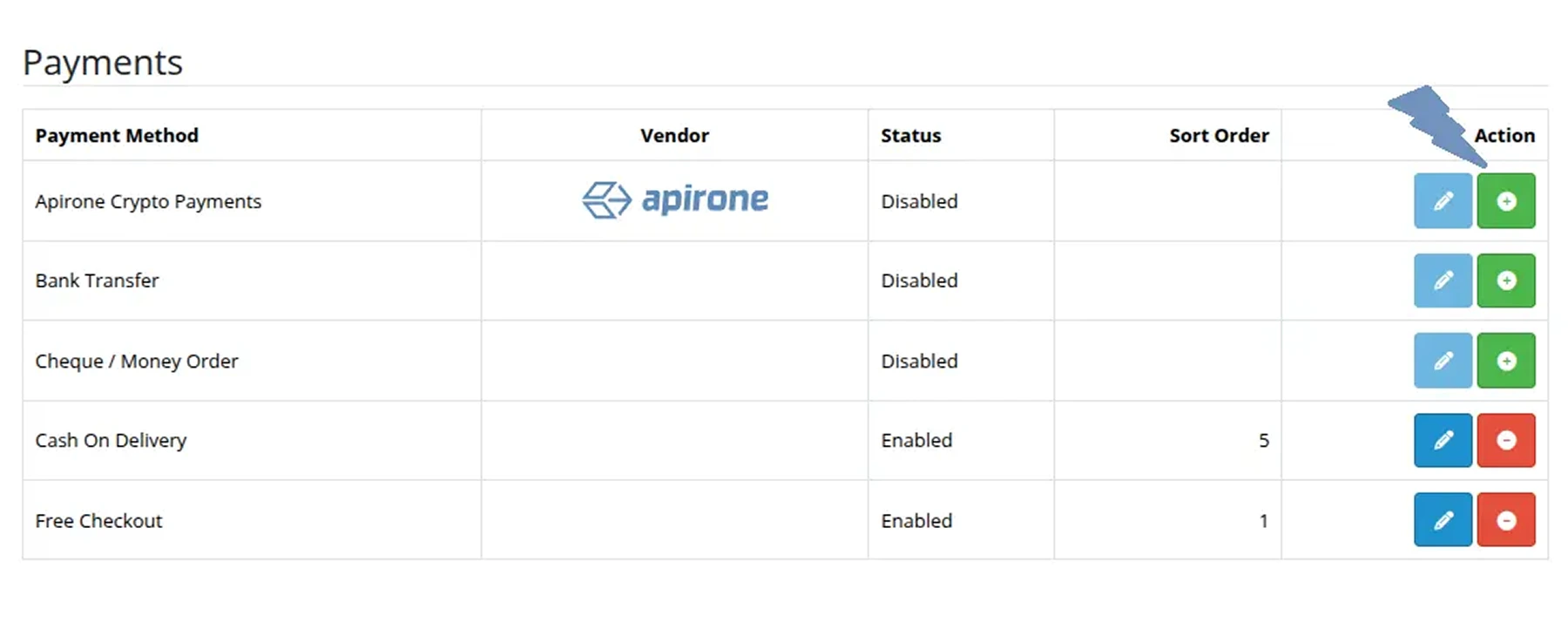
Step 2 - Configure the plugin
To customize all your data click the pencil icon.

Module settings
Merchant: Show Merchant name on the plugin invoice page. If this field is empty, it will not be displayed for a customer.
Payment timeout: The period during which a customer shall pay. Set value in seconds. Default value is 1800 (30 minutes).
Test currency customer: Enter an email of the customer to whom the test currencies will be shown.
<b>Processing fee plan:</b> Processing fee plan may be percentage or fixed. More information see on Pricing page .
Price adjustment factor: If you want to add/subtract percent to/from the payment amount, use the following price adjustment factor multiplied by the amount.
For example:
100% * 0.99 = 99%Apirone Logo: Show the Apirone logo on the invoice page.
Debug mode: Write debug information into the log file.
GeoZone: Select the geofence for which the plugin will be displayed.
Status: Enable or disable plugin.
Sort Order: Plugin position in the list of payment methods.
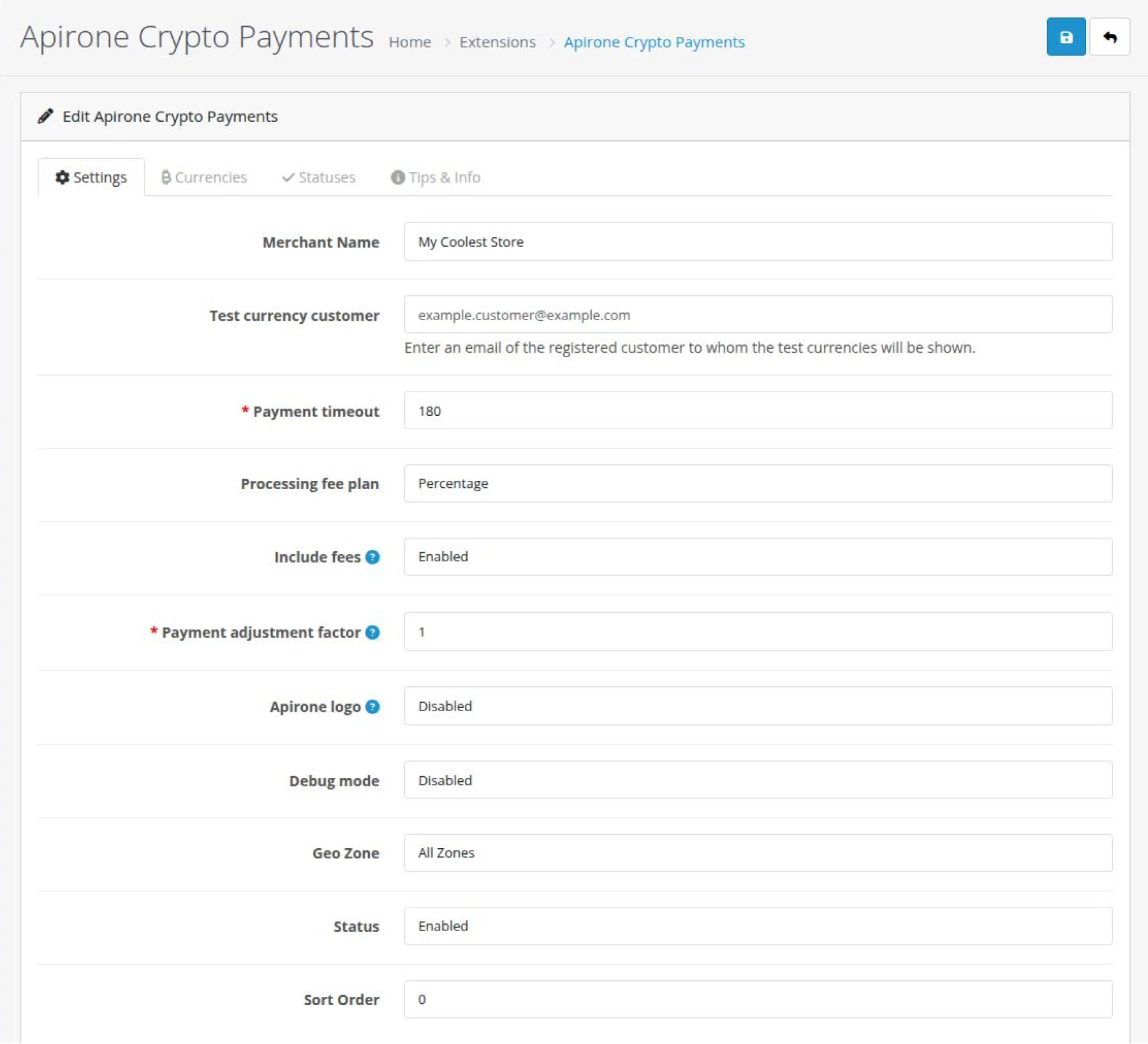
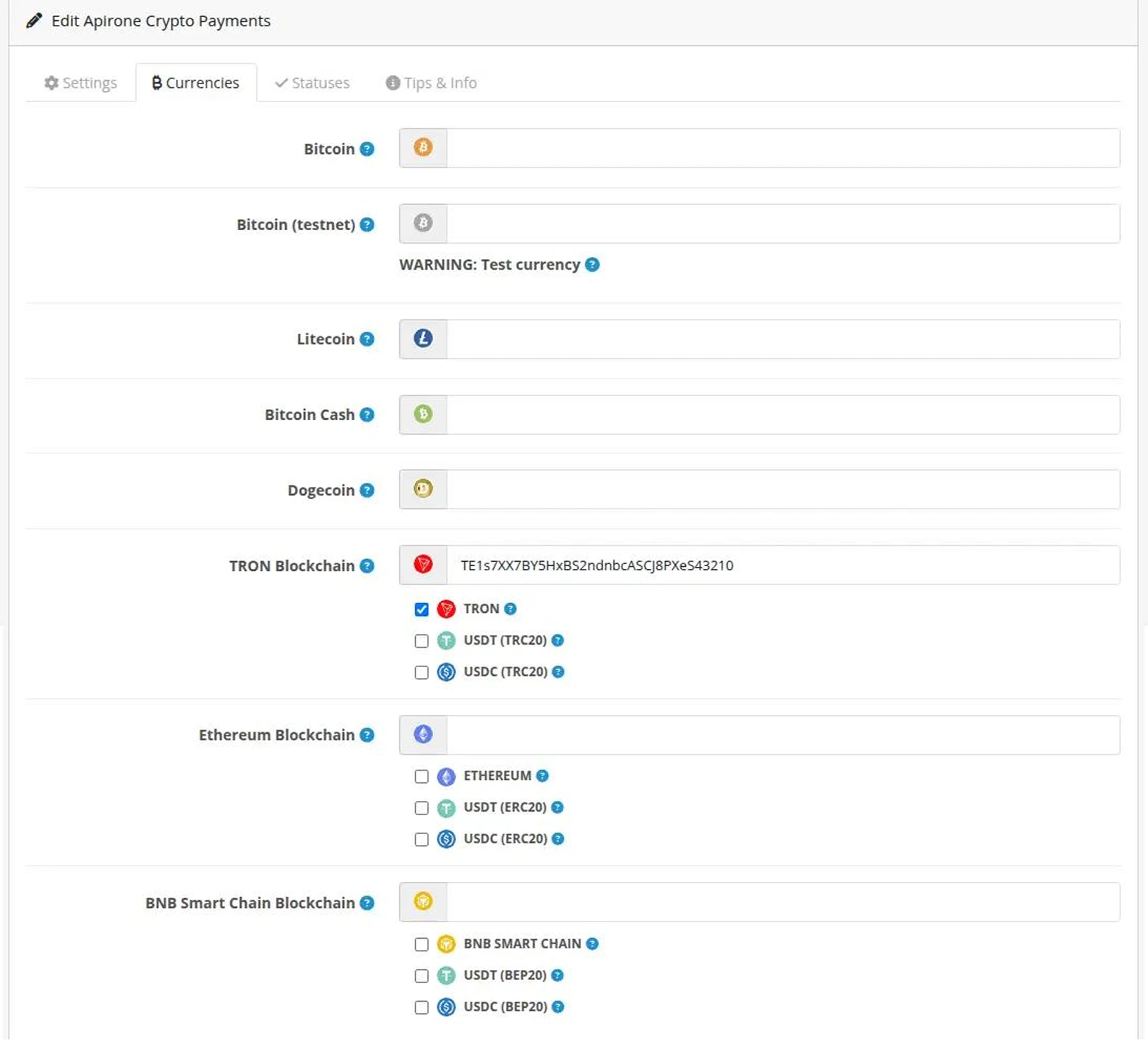
Setup your cryptocurrencies addresses
Fill in the addresses of the currencies you want to accept. All currencies that have Testnet in their names are used for testing purposes and are displayed to the user whose email is specified in the Test currency customer field.
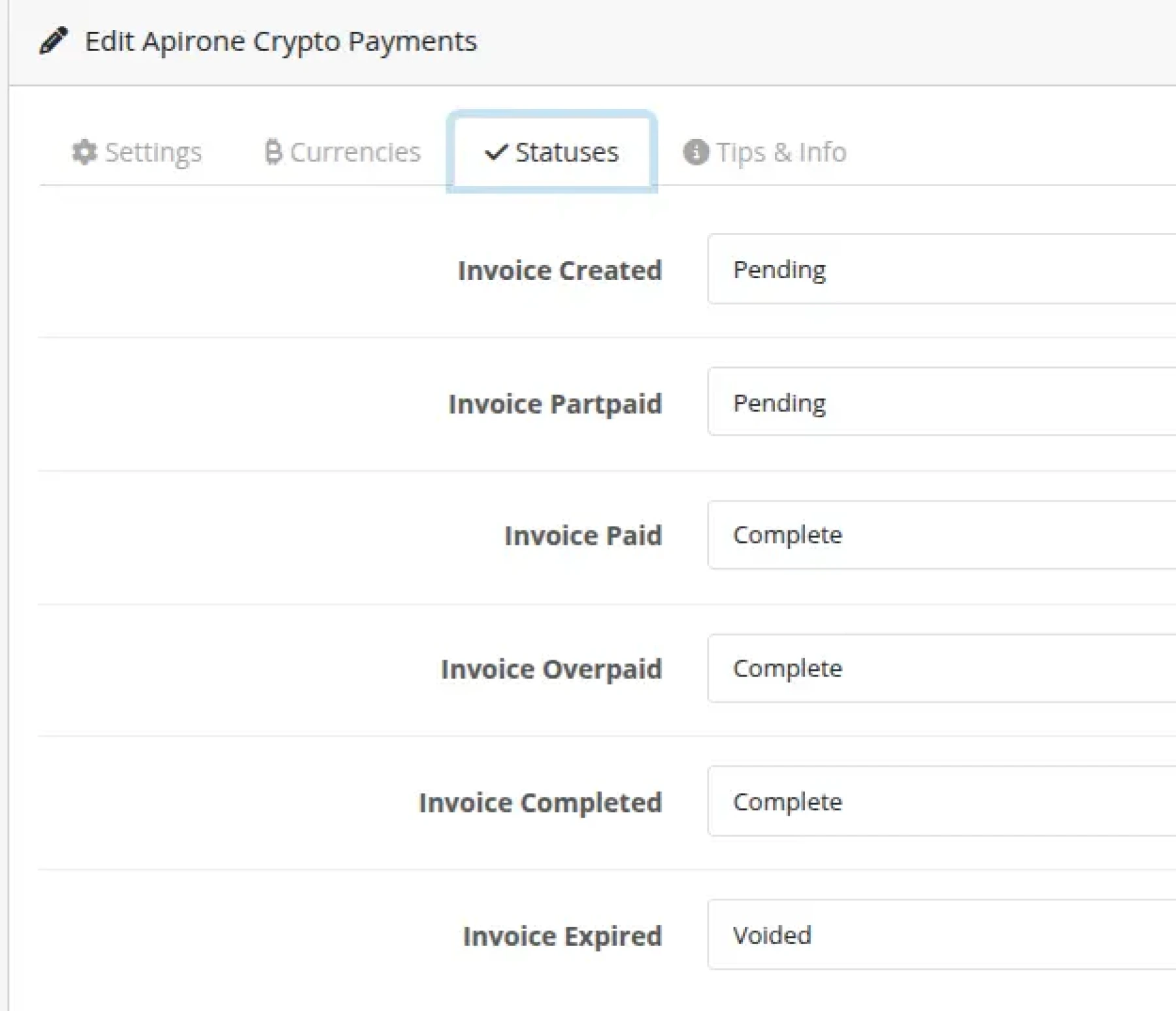
Statuses setup
Configuring the correspondence between OC statuses and Apirone account statuses as you wish. By default, statuses are set as Opencart recommended.
Step 3 - Done!
Your OpenCart store is now ready to accept cryptocurrency payments.
How the plugin works

Add cryptocurrency payments to your OpenCart store and accept on-chain transactions directly from your customers.
Compatibility:
OpenCart from 2.2.0.0 up to 4.0.2.3
OcStore 3.0.3.7
Examples of use on